There basic Basic datasets needed for a pavement management system to function include:
| Table of Contents | ||
|---|---|---|
|
The out-of-the-box Pavement Express has included includes the basic tables and windows for these 3 datasets. As part of the configuration process, the datasets will can be expanded to fit the agency’s different needs, and import routines will be setup to update these datasets on a regular basis.If customer has data other than the above-mentioned datasets defined the configuration process, additional datasets will be created and configured in a similar method to Roadway Inventory or Pavement Condition data. Follow the data import process defined by the configuration to update data.
The Inventory Map window is a one-stop shop that gives user the ability to see what is happening within their road networks. Users are able to review pavement information and determine roads conditions such as: Problem Spots, PCI Scores, Surface Age, Average Daily Traffic, etc. on the fly.
To access the Inventory Map window, follow these steps:
- Open the left navigation menu using the hamburger icon

- Click Asset Inventory
- Select Inventory Map
| Info |
|---|
Note: Import datasets must be in the following formats:
|
Roadway Segment
Roadway Inventory is for storing various roadway characteristics and their locations, such as Functional Class, Number of Lanes, Lane Width, Shoulder Width, etc. Out of the box, the The table is named PMSX_SEGMENT, and the corresponding window is located under Pavement Express > Asset Inventory > Roadway Segment menu. For detailed process of navigating in this window, follow this link.
Because Pavement Express does not use LRS, Roadway Segment data is a general dataset (see detailed discussion in AgileAssets System Foundation Configuration Guide, or this link on docs.agileassets.com) that features all the segments in the network..
The Roadway Segment Import Configuration will include an import routine that allows the user to update the data on a regular basis. To execute the import routine, follow these steps. For more information about Import configuration in the system, see Load Data into Tables.
- Select Pavement Express in the module menuOpen the left navigation menu using the hamburger icon
- Click Setup
- Click Data Import
- Right-click the PMSX_SEGMENT Importthat matches your segment type - Parking Lot or Roadway
- Select Edit Config
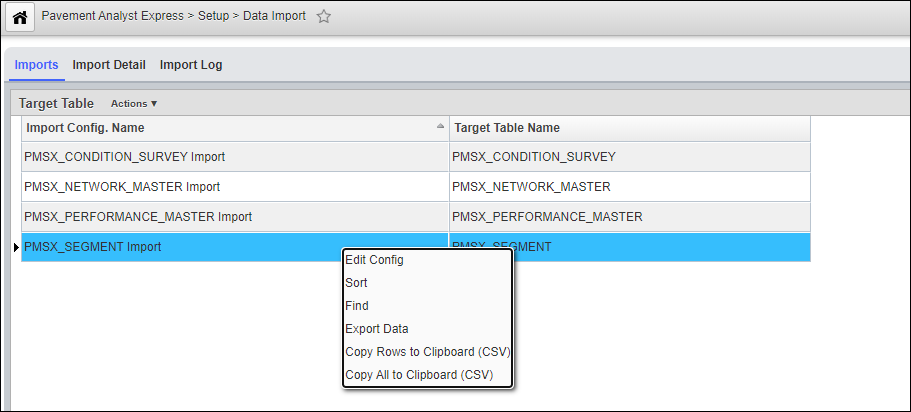
- In the pop-up window, use Edit Files button to upload the shape file that matches the data structure from Roadway Segment Import Configuration
- Click Select Source to select the file that was just uploaded
- Click Import to run the import.
- When the import has finished, click the Import Log tab to view the results
...
Pavement Condition is for storing the annual pavement condition survey results. Out of the box, the The table is named PMSX_CONDITION_SURVEY, and the corresponding window is located under Pavement Express > Asset Performance > Pavement Condition Survey menu. For detailed process of navigating in this window, follow this link.
Out of the box, system System can store all the pavement distress defined in ASTM D6433-18: Standard Practice for Roads and Parking Lots Pavement Condition Index Surveys standard, and then calculate Pavement Condition Index (PCI) based on the distress. Alternatively, if the PCI has already been calculated prior to import, the system can import them directly as well.
The Pavement Condition Data Configuration will include an import routine that allows the user to update the data on a regular basis. To execute the import routine, follow these steps. For more information about Import configuration in the system, see Load Data into Tables.
- Select Pavement Express in the module menuOpen the left navigation menu using the hamburger icon
- Click Setup
- Click Data Import
- Right-click the PMSX_CONDITION_SURVEY Import - Parking Lot or Roadway, depending on data,and select Edit Config.
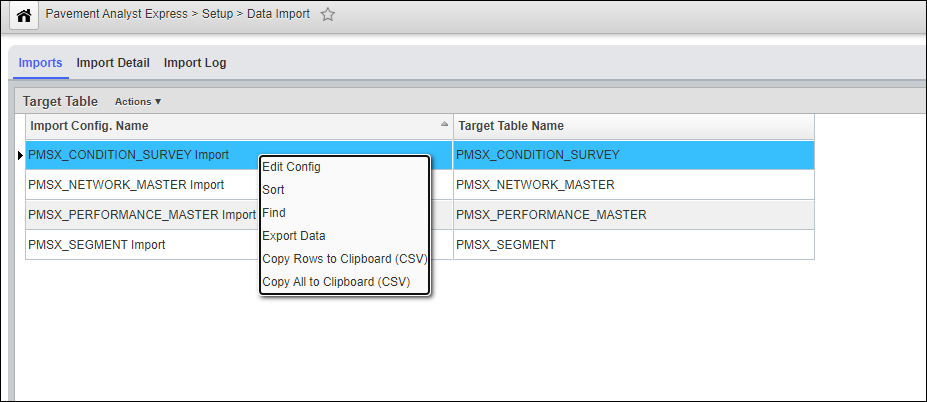
- In the pop-up window, use Edit Files button to upload the file that matches the data structure from Pavement Condition Data Configuration.
- Click Select Source button to select the file that was just uploaded.
- Iif If you haven't imported the new condition data yet, select Append radio button under Import Method:
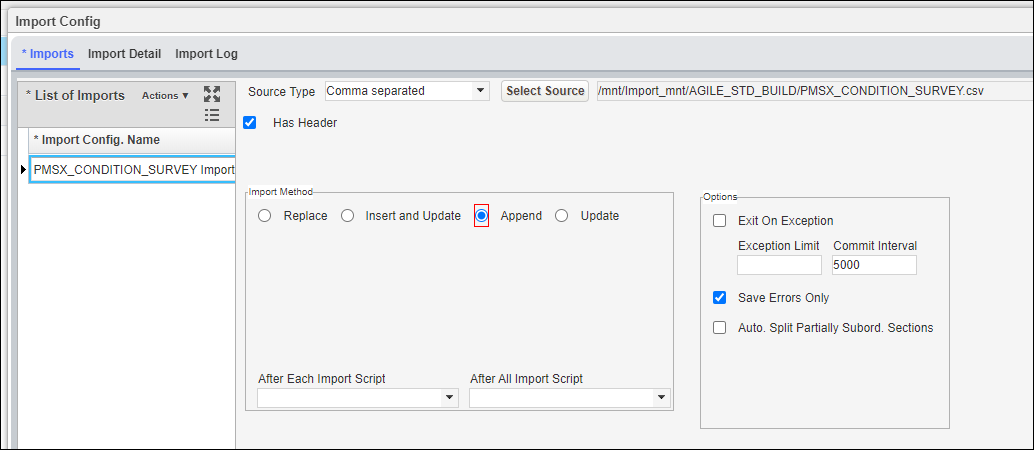
If you have already imported this year's condition data and want to re-upload a new batch of file it, select Replace radio button under Import Method, and update the Replace Where Clause:.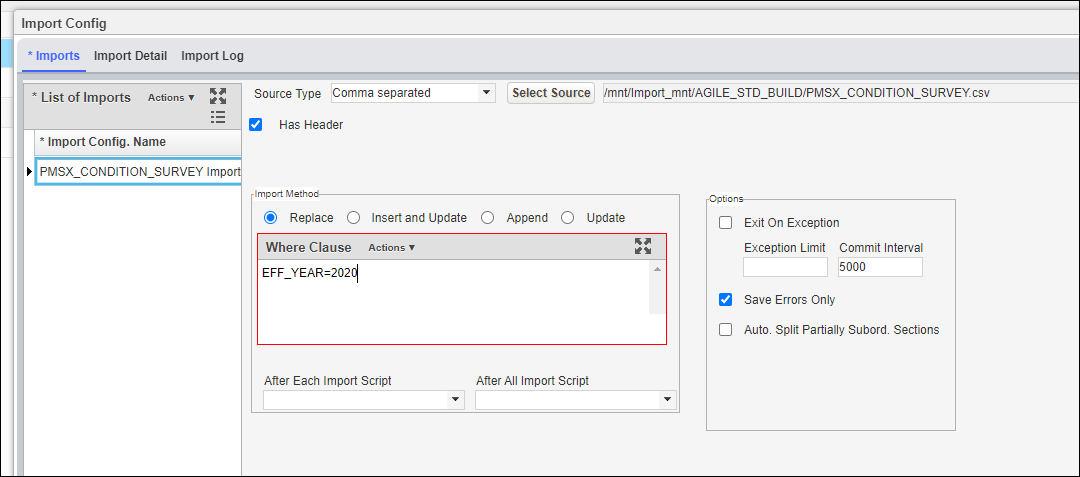
- Click Import button to run the import.
- When the import has finished, click the Import Log tab to view the results.
...
If the PCI has not been calculated prior to import, then follow these steps after executing the data import:
- Select Pavement Express in the module menuOpen the left navigation menu using the hamburger icon
- Click Asset Performance
- Click Inspection Data and Indices Calculated PCI
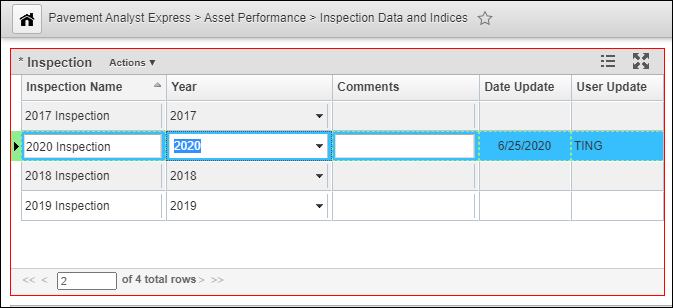
- In the Inspection pane in the top left pane (Inspection pane), , right-click and select Insert to insert a new inspection and fill in the Year that matches to the data year in the imported condition data. Then click Save.
- Select System from Click the waffle icon to open the module menu and select System. ClickSelect Toolsand select > System Job > Schedules.
- In the Schedules windowand then Schedules, select Pavement Express: Build Inspection Table from Condition Survey system job.
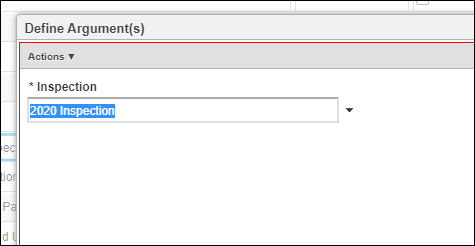
- In the Executables pane to the right pane, right-click the Calculate Pavement Inspection Table based on Condition Survey results executable, and select Define Argument(s). In the pop-up window, select the Inspection that was just created. Click OK.
- Right click the Pavement Express: Build Inspection Table from Condition Survey system job, and select Rub Job. Wait for the job to finish. Text in pop-up window will conclude "...is done." Then click Close.
- Next, select Pavement Express: Calculate Pavement Condition Index (PCI) in Inspection Table system job. In the right pane, right-click the Calculate Pavement Condition Index (PCI) from Inspection Data executable, and select Define Argument(s). In the pop-up window, select the Inspection that was just created. Click OK.
- Right-click the the Pavement Express: Calculate Pavement Condition Index (PCI) in Inspection Table system job, and select Rub Job. Wait for the job to finish. Text in pop-up window will conclude "...is done." Then click Close.
- The Pavement Condition Index (PCI) column in Pavement Condition Survey window is now calculated.
...
Pavement Structure (Construction History) is for storing the completed construction projects, their linear locations and material layer information of each construction location. Unlike other dataset, there are 4 system tables used for this function out of the box, and the corresponding window can be navigated to by following the steps below:
- Select Pavement Express in the module menuOpen the left navigation menu using the hamburger icon
- Click Asset Inventory
- Click Construction History Overview
There are 4 datasets storing the pavement structure data, corresponding to the 4 panes in the Construction History window:
- Construction History Project: This dataset stores the project-level information about each construction project and does not store any location information. The Treatment type and Completion Year information is also stored in this table.
- Typical Sections: This dataset stores Typical Sections under each project. A Typical Section is defined as the unique composition of a series of material layers within each project. In other words, within each Typical Section, the material layer compositions are expected to be the same for different locations. Each Typical Section can have multiple locations.
- Locations: This dataset is the segments (from Roadway Segments) included in this typical section.
- Material Layers: This dataset stores the material layer information for each typical section under the project (i.e., Within each Typical Section, the material layer composition is expected to be the same). This is the PMSX_TASBUILT table in the system.
...
- .